
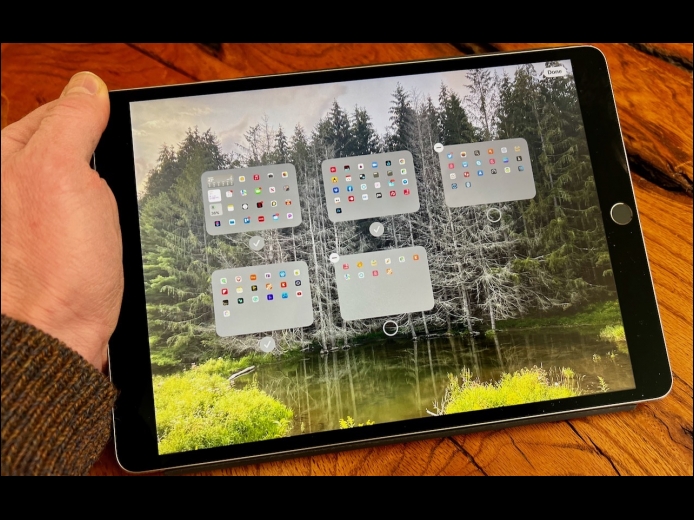



Back in iOS 14, Apple added the App Library, which collects all the apps on your iPhone. With everything available in the App Library, iOS 14 was also able to provide the option of hiding Home screen pages, a boon for those of us with too many disorganized pages. In iOS 15, Apple has taken the next step. You can still hide Home screen pages, but if you never want to see them again, you can delete them (apps remain in the App Library). Or, if they’re not in the order you want, you can rearrange them. Touch and hold any empty spot on the Home screen to enter jiggle mode.
Read MoreThere’s little more frustrating than running out of space, which always seems to happen at just the wrong time. Luckily, Apple makes it easy to check any time, before it becomes a problem. On the Mac, choose About This Mac from the Apple menu and click Storage. On an iPhone or iPad, navigate to Settings > General > iPhone/iPad Storage. For iCloud, you can look in either System Preferences > Apple ID on the Mac or in Settings > Your Name > iCloud > Manage Storage on an iPhone or iPad.
Read MoreMost of the time, when you unlock your iPhone or iPad, you want to launch an app. In iOS 15 and iPadOS 15, you no longer have to unlock the device, find the app on a Home screen page, and tap it. Instead, you can open an app directly from the Lock screen, assuming Settings > Face/Touch ID & Passcode > Today View and Search is turned on. Just swipe down from the middle of the Lock screen ➊ to access the Search screen, which lists apps from Siri Suggestions ➋. You can tap one of those to open it, or you can use the Search field to find an app by name and tap the search result ➌.
Read MorePages
User login
Popular Posts

Made the USA!
February 12th, 2014